

Most AI agents can tell you something’s wrong. ShipBob’s AI agent, Bobby, goes and fixes it.
Ask which orders are stuck in exception and why, tell it to swap the out-of-stock product and ship the order anyway, or ask how much of a SKU is left and where. Bobby reads the answer straight from your live ShipBob operation, then does the work: reshipping the order, creating the WRO, updating inventory, while you watch it happen.
ShipBob has been running Bobby in beta with more than 150 merchants, and was the subject of ShipBob’s most recent webinar, Your AI Fulfillment Agent Has Entered the Chat. Distinguished engineer Sagar Kohli walked through exactly how it works live, on a real account.
Below is a step-by-step guide to every demo, so you can try each one yourself.
Meet Bobby
Bobby is ShipBob’s AI agent, built into the ShipBob dashboard. Ask it a question or tell it to take an action, and it reads your live fulfillment data, does the work, and confirms every change before anything moves.
“Previously, you would have to download an Excel and go through all the data, crunch the numbers, and figure it out. Now you can do it right from Bobby.”
Sagar Kohli, Distinguished Engineer
Bobby understands natural language and ShipBob specific terminology, so it asks for exactly the information ShipBob’s system needs, in ShipBob’s own terms.
ShipBob AI runs on more than 1 billion units fulfilled and a network built for 97.6% delivery estimate accuracy, so the answers Bobby gives are not a best guess. They are decisions and questions and actions running on real operational data.
How to use Bobby: a step-by-step guide
Here’s a deep dive into common use cases for Bobby, and how to leverage ShipBob’s AI agent to work smarter, not harder.
How to open Bobby in your dashboard
What you’ll learn:
The two ways to access Bobby from anywhere in the ShipBob dashboard.
What you’ll need:
A ShipBob account with Bobby enabled (currently rolling out to beta merchants).
What to expect:
A chat window that stays with you as you navigate the dashboard, so you never have to juggle multiple applications or tabs simultaneously.
Steps
- Log in to your ShipBob dashboard.
- Look at the left-hand navigation. Click the Ask Bobby icon to open Bobby full screen. Alternatively, click the chat icon in the bottom-right corner, where human support chat used to live. (Bobby and human support are now unified in the same window.)
- Use the display-mode toggle at the top of the window to switch between full screen, a floating panel you can resize, and a side drawer docked to the edge, consistent with other panels across the app.
Try it yourself: Open Bobby in floating mode and keep it open while you click through your orders page. Notice it does not interrupt your flow.
How to check fulfillment performance in seconds
What you’ll learn:
How to pull on-time ship rate and on-time delivery data without exporting a spreadsheet.
What to expect:
Accurate on-time ship rate and on-time delivery rate, plus a chart and a table, generated in under a minute.
Steps
- Open a new Bobby conversation.
- Ask a plain-language question, such as: “How is my on-time ship rate looking this month, and what’s my on-time delivery rate?”
- Bobby accesses your live fulfillment data and returns a summary and a month-over-month graph.
- Use the built-in filters to narrow the date range or fulfillment center.
- Click Export to PDF for a report you can share with your team.
Try it yourself: Ask Bobby to break the same stat down by fulfillment center instead of by month, and see how it adjusts the view.
How to find inventory at risk of stocking out
What you’ll learn:
How to surface SKUs likely to run out of stock, then see exactly where that inventory sits.
What to expect:
A detailed breakdown of stock levels, plus a sortable breakdown by location, so you know exactly where the shortage is and can act on it.
Steps
- Start a new Bobby conversation.
- Ask: “Which SKUs are running out of stock in the next 30 days?”
- Bobby analyzes recent inventory velocity and flags at-risk items, with suggested next steps.
- To see the breakdown by location, ask: “Give me the inventory breakdown for [SKU] across the network.”
- Watch Bobby analyze current inventory levels across the network and return stock levels per fulfillment center.
Try it yourself: Follow one of Bobby’s suggested next actions instead of typing a new prompt. That is how it is designed to guide you through a workflow.
How to create a WRO from a chat prompt
What you’ll learn:
How to restock a SKU at a specific fulfillment center directly from a chat with Bobby.
What to expect:
Once confirmed, Bobby creates a WRO and returns a success summary and a link to the new WRO in your dashboard. If you name a location that is not a direct receiving point, Bobby corrects it to the right hub. In the demo, a request to send inventory to “Moreno Valley” was automatically routed to the hub that actually receives inventory for that network.
Steps
- From the inventory conversation above, ask Bobby to restock the low-stock SKU at the location you want: “Create a WRO to restock [SKU] at Moreno Valley.”
- Bobby runs on a ShipBob-defined skill for WRO creation, so it asks for anything it is missing before proceeding. In the demo, that included which specific site to send to, since more than one option existed at that hub, and a tracking number.
- Review Bobby’s proposed estimated arrival date. You can adjust it or continue with its suggestion.
- Bobby shows a full confirmation summary (quantity, SKU, dates, destination) before making any change.
- Confirm the result, or decline if anything looks off.
Try it yourself: After the WRO is created, ask Bobby to pull the box labels for it. This is a natural next step it will often suggest on its own.
How to resolve out-of-stock order exceptions
What you’ll learn:
How to find orders stuck on exception because of an inventory shortfall, and fix them by swapping to an available variant, all from chat.
What to expect:
Flagged orders move from exception into processing, with a full audit trail. Every action Bobby takes is logged under your user account, visible in the order’s timeline.
Steps
- Start a new conversation and ask: “Do I have any out-of-stock orders?”
- Bobby returns a summary, plus a breakdown table, and identifies the blocking item.
- Ask Bobby to check for available alternatives. For example, “Is there another color of this same product in stock?”
- Once you have picked a replacement, tell Bobby to make the swap. For example, “Swap the gray SKU for the black SKU on these orders.”
- Bobby confirms before executing. Review the summary, then approve.
- Bobby fires the update in parallel across all affected orders and reports back how many were updated.
Try it yourself: After the swap, ask Bobby “Why are these orders still stuck?” if any remain. It can walk you through the exact reason, such as a fulfillment center assignment issue, and propose the fix.
How to reassign an order to a different fulfillment center
What you’ll learn:
How to fix an order that is stuck because it is pointed at a fulfillment center without the right inventory.
What to expect:
Affected orders move out of exception and into processing at the corrected fulfillment center. Verify this directly in your dashboard; the change is logged in the order’s timeline.
Steps
- Ask Bobby why a specific order, or set of orders, is stuck.
- If the issue is a fulfillment center mismatch, ask Bobby to reassign it. For example, “Reassign these orders to the fulfillment center that has the black SKU in stock.”
- Bobby calls the fulfillment center tool to identify the right destination, then reassigns affected orders in parallel.
- Confirm the change when prompted.
How to expedite a shipping method on an order
What you’ll learn:
How to bump an order to an expedited shipping method by describing what you want in plain language.
What to expect:
The order’s shipping method updates, and the change is reflected in the order’s timeline. Search the order afterward to confirm the new shipping option was applied.
Steps
- Ask: “Can you expedite this order?”
- You do not need to know ShipBob’s exact terminology. Bobby translates plain language into the correct shipping method.
- Bobby confirms the change before applying it, since this is a write action.
- Approve the update.
Feedback and human support, built in
Bobby makes it easy to give feedback directly in the chat. Bobby asks whether you are flagging something positive or reporting a bug, then pulls the relevant context from your conversation and prepares a summary for ShipBob’s team.
If Bobby is not getting you where you need to be, handing off to a person does not mean starting over. Click through to a human agent from within any Bobby conversation, and ShipBob support automatically receives a summary of what you have discussed so far, so you do not have to explain anything to the person who picks it up.
ShipBob collects feedback directly through Bobby on an ongoing basis, so the agent keeps getting sharper as more merchants use it.
Bobby vs. ShipBob MCP: which one should you use?
If you are already using ShipBob MCP with Claude, Bobby is not a replacement.
| Use Claude and ShipBob MCP for… | Use Bobby when… |
| Automated, scheduled, or proactive work, such as:
– Routine reports |
You are already in the ShipBob dashboard and want answers or actions without switching apps.
– Requires no separate AI subscription |
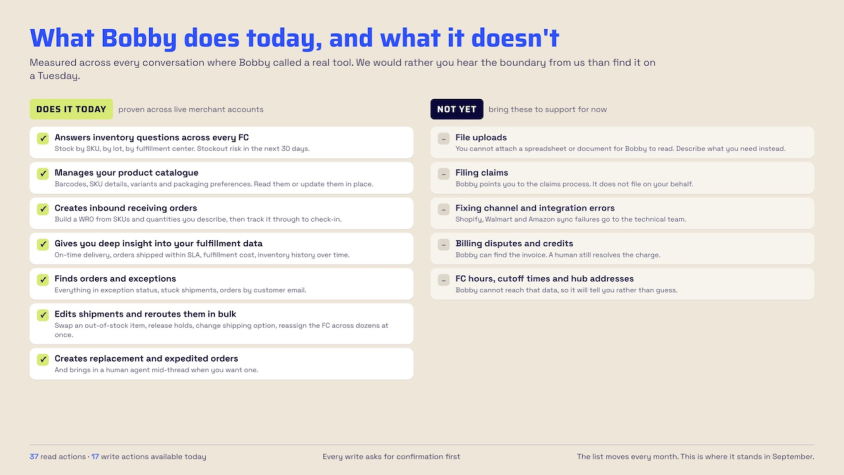
What Bobby can and can’t do today
As of September 2026, Bobby has 37 read actions and 17 write actions available, measured across every conversation where it called a real tool, and every write still asks for confirmation first.
The list below shows exactly where that stands today.
What’s next
Bobby is in beta now and moving toward general availability for fall of 2026, with self-serve permissions, file uploads for WRO creation, and continued expansion of what it can act on.
That is the same pattern behind everything ShipBob AI ships: Bobby, ShipBob MCP, and the AI Hub all run on the same owned stack, so what Bobby can do today, your own tools can do too.
“So much of what we put into our roadmap is based on what we hear from merchants. If that’s useful, let us know, and we will try to bake it in.”
Brittany Barron, Senior Director of Product Marketing
Want in before general availability? Join the Bobby beta and start putting ShipBob AI to work on your own operation.
